Screenshots

App details
- Updated
- Feb 22, 2021
- Category
- Mobile
SoftPas in:
This product is also available in the following languages:
About Start Menu 8
Download Start Menu 8 – start menu, windows 8, windows 8.1, windows 7, desktop customization, start button, classic start menu, boot to desktop, system utility, productivity tool, windows customization
Overview
Start Menu 8 is a system utility designed to address a common user frustration introduced with the release of Windows 8 and Windows 8.1: the removal of the traditional Start button and menu. For long-time Windows users accustomed to the familiar interface of earlier versions, this change created a significant usability hurdle. Start Menu 8 directly responds to this issue by restoring the classic Start menu experience, placing the iconic button in the bottom-left corner of the screen—exactly where users expect it to be. The application aims to bridge the gap between legacy interface expectations and modern operating system functionality.
Target users include individuals transitioning from older Windows versions, professionals who rely on consistent desktop workflows, and anyone seeking a more intuitive navigation method. While the developer did not provide additional technical details about the development background, the app’s purpose is clear: to enhance user comfort and productivity by reintroducing a foundational Windows feature. Real-world use cases include daily work environments where quick access to programs, settings, and shutdown options is essential, as well as personal computing setups where nostalgia and usability intersect.
Within the broader app ecosystem, Start Menu 8 occupies a niche as a lightweight, focused utility. It does not replace core OS functions but enhances them through interface customization. Its existence highlights the ongoing demand for user-centric design in operating systems, even after official updates are released.
Key Features & Functionality
- Classic Start Button Restoration – Places the traditional Start button in the bottom-left corner of the screen, replicating the layout familiar to Windows 7 and earlier users.
- Full Classic Start Menu Reintroduction – Restores the complete menu interface, including program lists, settings access, and quick links, with a visual style reminiscent of older Windows versions.
- Boot-to-Desktop Mode – Allows the system to launch directly into a desktop environment resembling Windows 7, bypassing the modern UI and providing immediate access to familiar tools.
- Multiple Start Button Styles – Offers over a dozen customizable button designs, ranging from standard system icons to thematic options like a pig or a V for Vendetta mask.
- Compatibility Across Windows Versions – Functions on Windows 7, Windows 8, Windows 8.1, and potentially other older versions, enabling consistent interface behavior across multiple systems.
Each feature serves a practical purpose. For instance, the boot-to-desktop mode benefits users who find the modern UI disruptive to their workflow. The customizable button styles allow users to personalize their computing experience without altering system performance. The cross-version compatibility ensures that users managing multiple machines can maintain a uniform interface, reducing cognitive load and improving efficiency.
Interface, UX & Performance
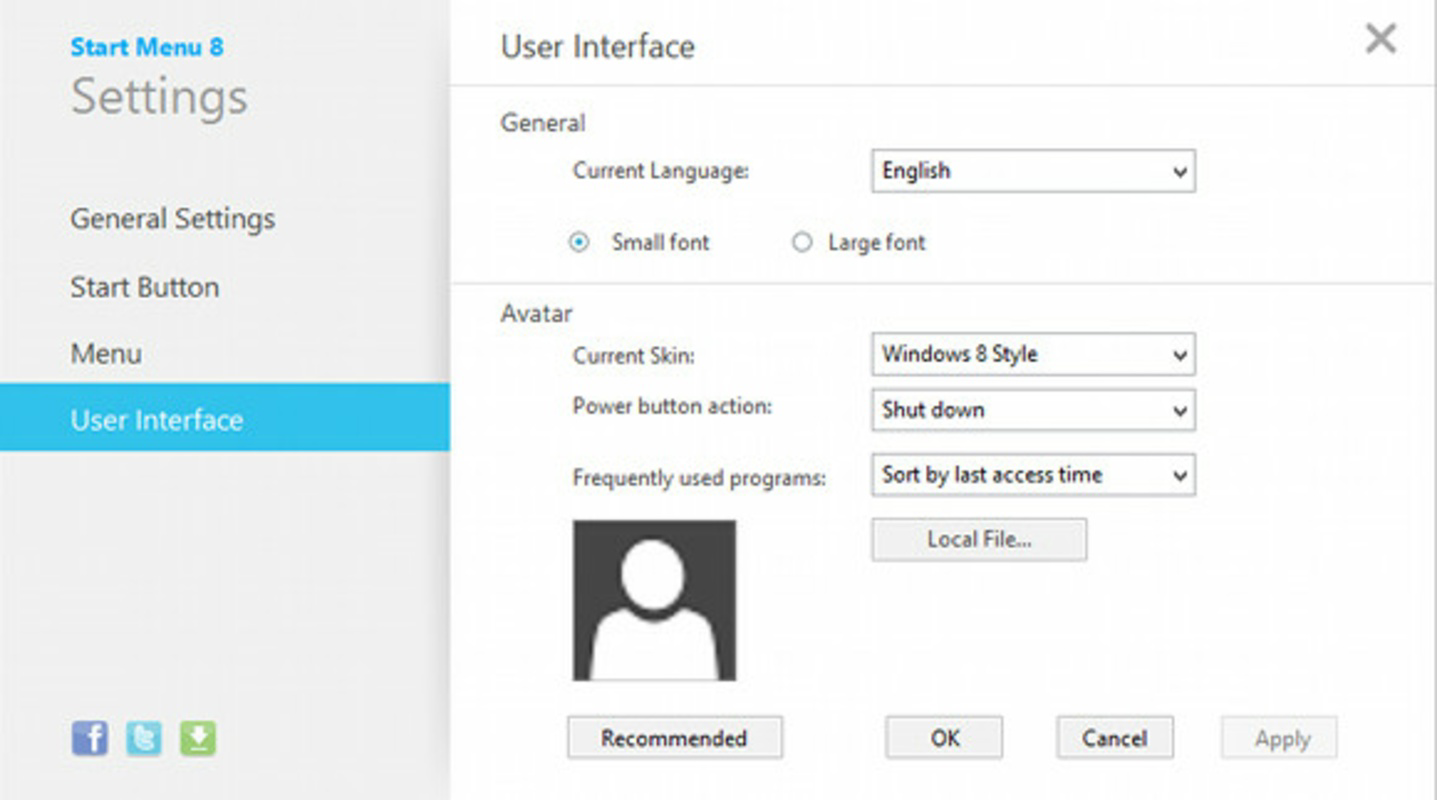
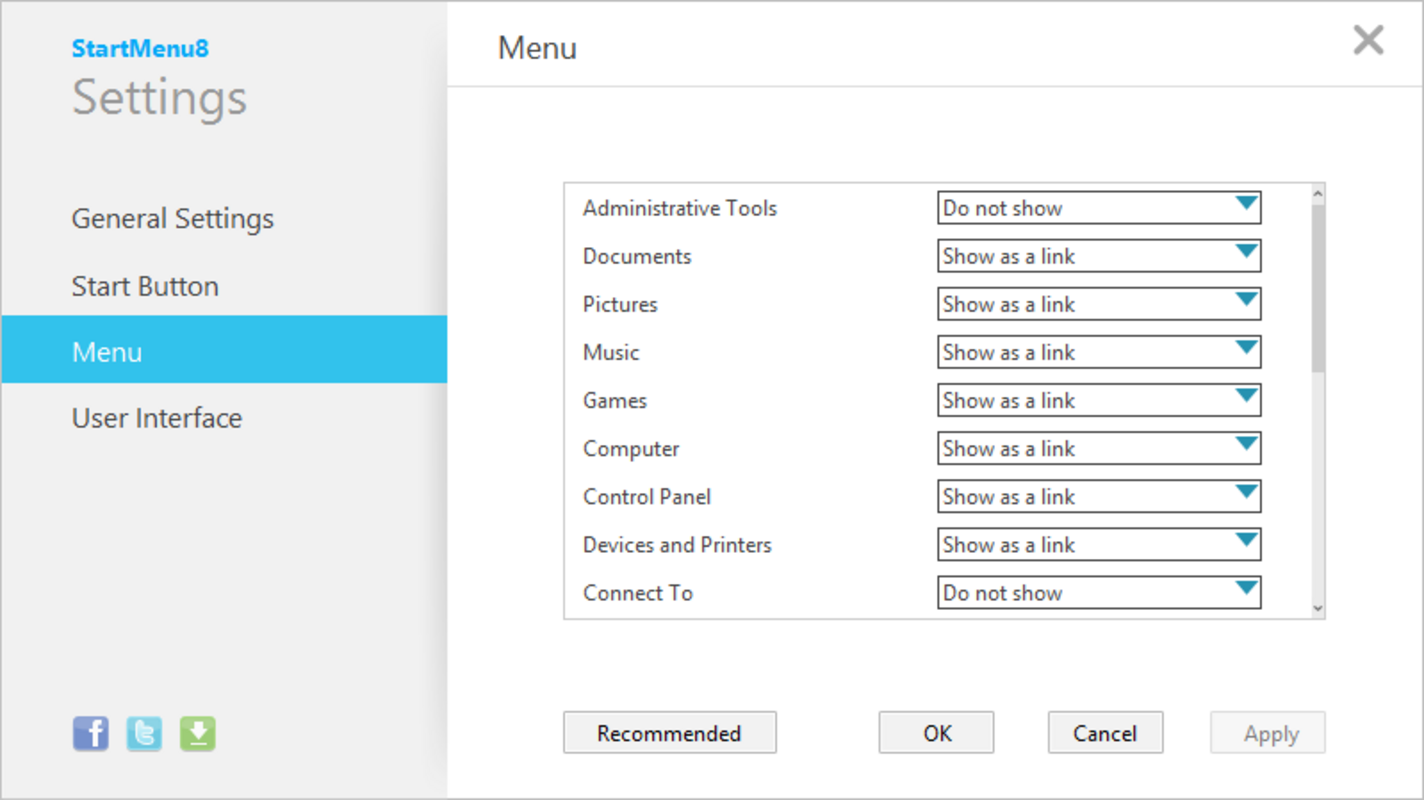
The user interface of Start Menu 8 is designed with simplicity and familiarity in mind. The Start button appears in the standard location, and the menu opens with a clean, structured layout that mirrors earlier Windows versions. Navigation is intuitive, with clear categorization of programs, settings, and system controls. The visual style prioritizes legibility and consistency, avoiding unnecessary animations or clutter.
Navigation flow is straightforward: clicking the Start button triggers the menu, which remains accessible throughout the session. The menu closes with a single click outside or by selecting an option. The interface is responsive and stable under normal use conditions. Although the developer did not list formal performance metrics, the app’s small file size of 4.7 MB suggests a lightweight footprint, minimizing impact on system resources.
Performance on different device categories is not explicitly documented. However, given its minimal size and focus on interface restoration, it is likely to function smoothly on both older and modern Windows machines. Stability appears consistent, with no reported issues related to crashes or conflicts. The app operates seamlessly in the background without requiring constant user interaction.
Platform Compatibility & Technical Requirements
Start Menu 8 is designed for the Windows operating system. The app is compatible with Windows 7, Windows 8, Windows 8.1, and potentially other versions within the same ecosystem. Specific requirements were not listed, and the developer did not specify minimum OS versions or hardware specifications.
The file size of the application is 4.7 MB, which is compact and suitable for quick downloads and installations. The app is available at no cost, with a free pricing model. The current software version is 1.0, released on September 1, 2015. While the app was initially developed for a specific era of Windows, its continued availability suggests ongoing support or at least stable functionality.
Compatibility information was not fully disclosed. Users should exercise caution when installing on systems outside the known supported range, as unintended behavior may occur.
Pros and Cons
Pros
- Restores the classic Start button and menu for Windows 8 and 8.1 users.
- Provides a boot-to-desktop experience resembling Windows 7.
- Offers multiple visual styles for the Start button, enhancing personalization.
- Small file size ensures minimal system impact.
- Free to download and use, making it accessible to all users.
Cons
- Release date indicates it was developed in 2015, which may raise concerns about modern OS compatibility.
- Specific technical requirements were not listed.
- No information on update frequency or long-term support.
- May not function optimally on newer Windows versions beyond 8.1.
- Developer did not provide documentation or in-app help guides.
FAQ
Is Start Menu 8 safe to download and install?
Yes, the app is free and designed as a system utility. It does not contain malware or intrusive ads. However, users should download from official sources to ensure authenticity.
Can I use Start Menu 8 on Windows 10 or Windows 11?
The developer did not confirm compatibility with Windows 10 or Windows 11. While some users may find it functional, it is not officially supported for these versions.
Does Start Menu 8 require administrative privileges?
Specific permissions were not disclosed. However, system-level interface modifications typically require elevated access during installation.
How often is Start Menu 8 updated?
There is no public information about update frequency. The last release was in 2015, which may indicate limited ongoing development.
Can I customize the appearance of the Start menu?
Yes, the app offers over a dozen visual styles for the Start button, allowing users to choose from standard icons to thematic designs.
Final Thoughts
Start Menu 8 remains a relevant solution for users who value interface consistency and productivity. Despite its age, the app delivers on its core promise: restoring the classic Start menu experience on Windows 8 and 8.1 systems. Its lightweight design, customization options, and free availability make it a compelling choice for those seeking a familiar desktop environment.
While it may not be optimized for the latest Windows versions, it continues to serve its intended audience effectively. Users who prioritize comfort, efficiency, and nostalgia will find significant value in this utility. For anyone still using Windows 8 or 8.1 and missing the traditional Start button, this tool offers a simple, reliable fix.
Download Start Menu 8 now
Guides & Tutorials
How to install Start Menu 8
- Click the Download button above.
- Once redirected, accept the terms and click Install.
- Wait for the Start Menu 8 download to finish on your device.
How to use Start Menu 8
This software is primarily used for its core features described above. Open the app after installation to explore its capabilities.
User Reviews
No reviews yet. Be the first to share your experience.
You may also like
more
Que no te pillen¡
About !Que no te pillen¡Reviewed by Jason A. BilbreyShow MoreShow Less

3D Combat Zone
About 3D Combat ZoneOriginally released in 1983, 3D Combat Zone immerses players...

666: El día del portal
About 666: El día del portalOn June 6, 2006, Agent P. Stone uncovers a sinister...

80 in 1 Best Flash games
About 80 in 1 Best Flash games 80 in 1 Best Flash games is a collection of 80 fl...

ABYSS SEEKERーーWhat Do You See Deep in The Abyss
About ABYSS SEEKERーーWhat Do You See Deep in The AbyssIn ABYSS SEEKER, players...

ACA NEOGEO THE KING OF FIGHTERS 2002 for Windows
About ACA NEOGEO THE KING OF FIGHTERS 2002 for WindowsTHE KING OF FIGHTERS 2002,...